
Google Business Profile Not Showing Up? 11 Troubleshooting Steps & Fixes for 2026

Summarize with AI
These are the main points to know.
You can also learn how to fix suspended or disabled profiles, review Google's Business Profile guidelines, and see how to improve local ranking on Google.
Miami plumber story: a quick example of GBP not showing up
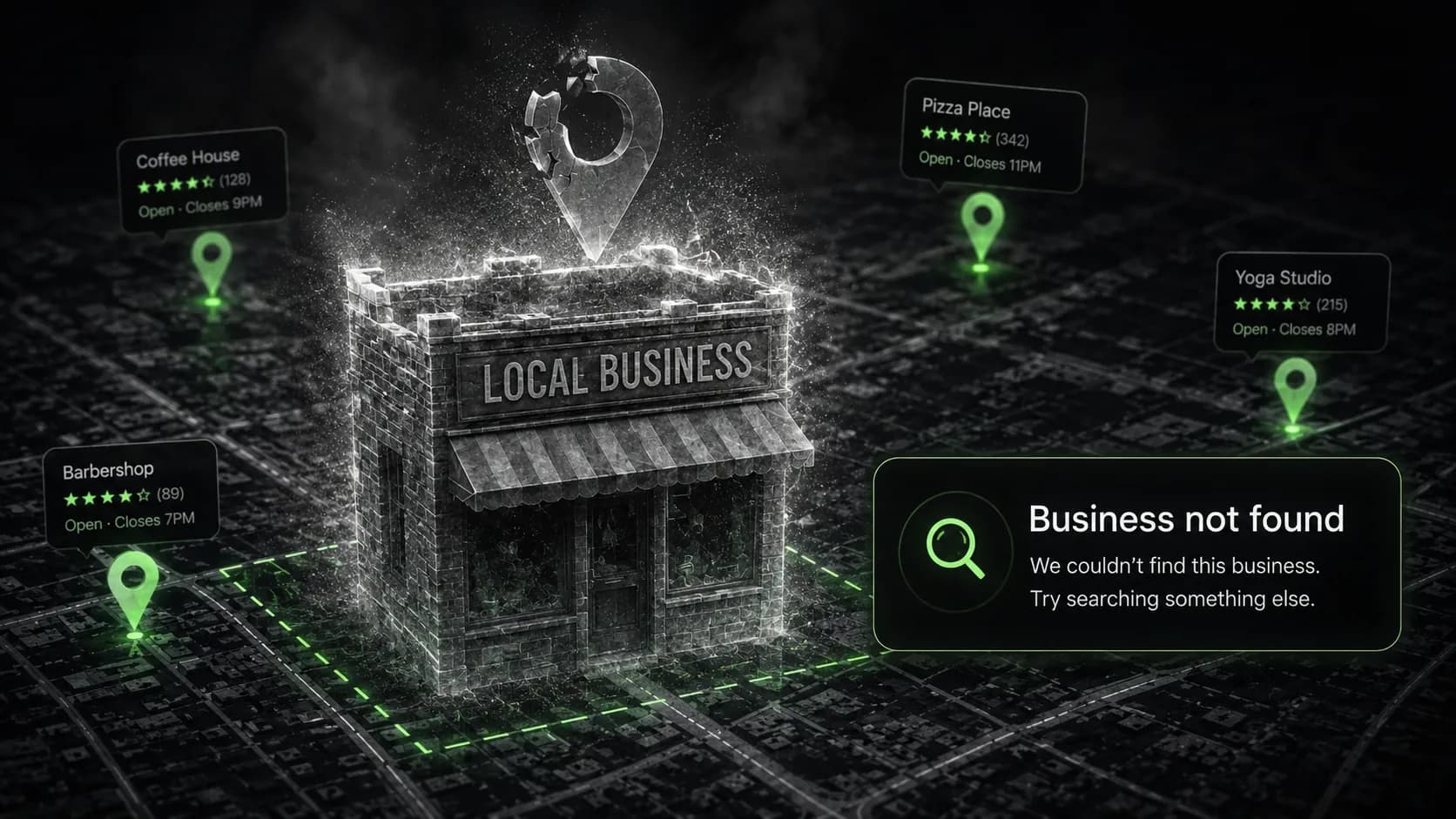
A Miami plumber searched "plumber near me" from his phone, standing near his own business location in Miami. His Google Business Profile did not appear anywhere: not in the Local Pack, not on Google Maps, not in a single result. He had added photos, filled out his business hours, written a description, and even asked a few customers for reviews. To him, everything looked complete.
The problem was simple: his verification process was never fully completed. He had created the profile, entered his business information, selected categories, and assumed it was live. But Google requires businesses to verify their location before appearing normally on Maps or Search. Without that final step, the profile existed in Google's system but was not trusted enough to show to potential customers.
After completing verification, his business became eligible to appear for branded searches. But ranking for "plumber near me" against established competitors still required strategy: reviews, consistent citations, website content, and time.
That case was simple. After auditing more than 200 local businesses and handling over 100 Google Business Profile suspension and visibility issues around Miami, I have seen this pattern repeat often. Here are the 11 troubleshooting steps I check when a Google Business Profile is not showing up.
Short answer: main reasons your Google Business Profile is not showing up
There are various reasons a Google Business Profile does not show up on Google, and the most common reasons fall into a handful of categories. The profile may have incomplete or failed verification. It may be suspended or restricted due to policy violations. The business address or service area may be configured incorrectly. NAP may be inconsistent across the web. There may be duplicate or old listings creating conflicts. Recent edits may be under review. Or the profile is visible but ranking too low for competitive keywords.
It is important to understand the difference: a visibility problem means the profile does not appear at all, even for your exact business name. A ranking problem means the profile appears for branded searches but not for service keywords like "dentist near me." Complete and consistent business information helps Google understand and trust the business from the start.
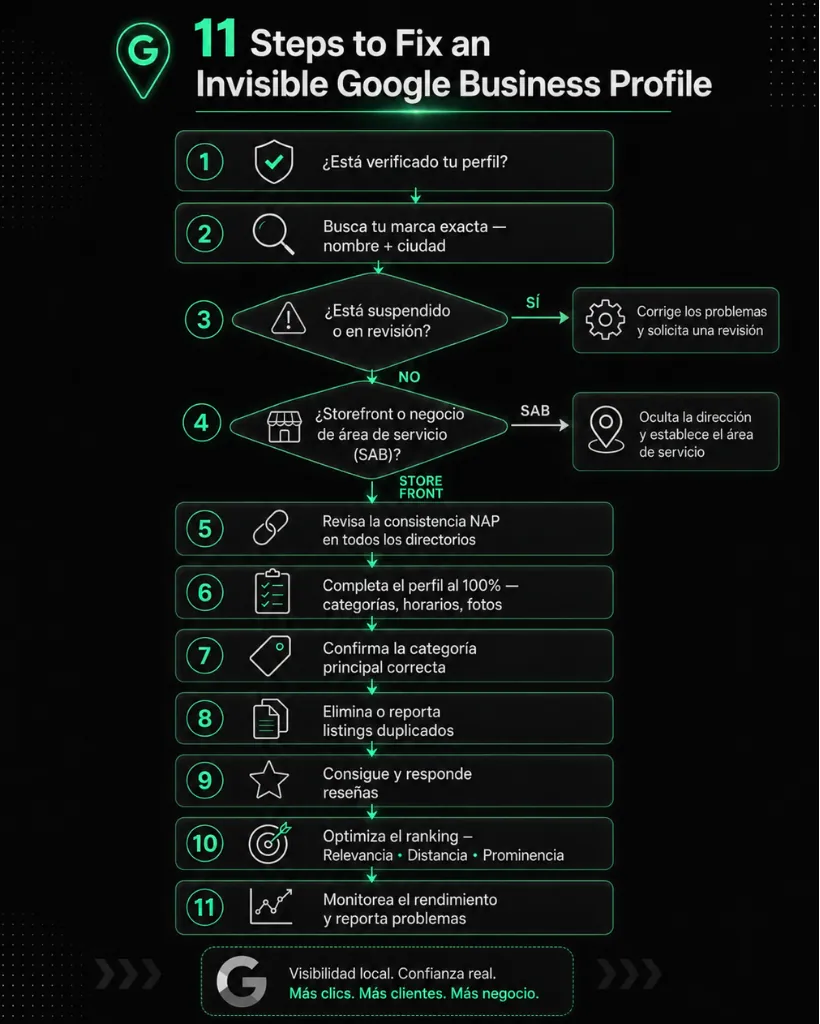
The 11 steps below mirror how an experienced local SEO strategist would diagnose the specific issue, following Google's official Business Profile guidelines as the baseline for what Google expects from a trusted business.
Quick diagnosis table: symptoms vs. likely causes
| Symptom | Likely cause | First thing to check |
|---|---|---|
| Not showing for exact business name | Unverified profile, suspension, or address problem | Verification status and dashboard alerts |
| Shows by direct URL but not in Search or Maps | Restriction, filtering, or very low prominence | Policy banners, categories, and competition |
| Shows for brand name but not service keywords | Local ranking weakness: relevance, distance, prominence | Categories, services, reviews, website content |
| Disappeared after changing name, address or category | Re-verification or review triggered by edits | Pending review banners or verification prompts |
| Says verified but no calls or impressions | Low rankings, narrow service area, or mismatched categories | Performance data, call tracking, categories and reviews |
| Dashboard shows suspended, restricted or pending review | Guideline violation | Fix violations first, then use the appeals tool if eligible |
Why Google Business Profile visibility is stricter in 2026
In 2026, local businesses should treat Google Business Profile visibility as a trust and compliance issue, not just a one-time setup task.
Google's guidelines are strict about accurate business names, real-world addresses, service areas, duplicate listings, categories, and whether the business is represented consistently across the web. This matters because local search has a spam problem: fake listings, virtual offices, keyword-stuffed names, duplicate profiles, and manipulated reviews can all make Maps results less reliable.
Google uses automated review systems and moderation processes to identify profiles that may violate its guidelines, including virtual offices, misleading names, duplicate listings, and inaccurate business information.
If Google cannot confidently understand who you are, where you operate, and whether your business information is accurate, your profile may be filtered, restricted, suspended, or simply fail to appear for the searches you expect.
1. Check if your Google Business Profile is actually verified
Log into the Google account that manages your business on Google. Search your exact business name in Google Search and look for the in-search editing panel that confirms ownership and verification status.
In local audits across Miami-area businesses, this is one of the first things I check. Many owners think the profile is "done" because all fields are filled out, but the final verification step was never completed or was rejected. Claiming and verifying your Google Business Profile is essential. Profiles with a pending verification status may not be eligible to appear normally in Google Search or Google Maps. Verification also gives you access to management features like profile edits, review responses, posts, and messaging when available.
Verification methods may include postcard, phone, email, live video, or video recording. Google chooses the method automatically based on business type, category, and region. Most postcard codes arrive within 14 days, according to Google's verification documentation. Video verification is common for many categories and requires an unedited recording that shows location, equipment, and proof that you are authorized to manage the business.
If you are not sure how to complete verification correctly, watch this step-by-step video on how to verify your Google Business Profile:
After verification, it can take time for changes to appear. Google may also review a business after verification to ensure it meets guidelines. Verification makes the profile eligible to appear. It does not automatically place the business in the top three for competitive keywords.
Useful Google resources:
2. Search your exact business name before searching "near me" keywords
The first test is always the brand name. Search your exact business name plus city, for example "Shelly's Coffee Miami," instead of generic search terms like "coffee shop near me."
If your Google Business Profile does not show up for the exact brand name and city, this usually indicates a verification, suspension, restriction, or address problem, not a ranking issue. Test in both Google Search and Google Maps, signed out or in incognito mode on your mobile device, from near your actual business location.
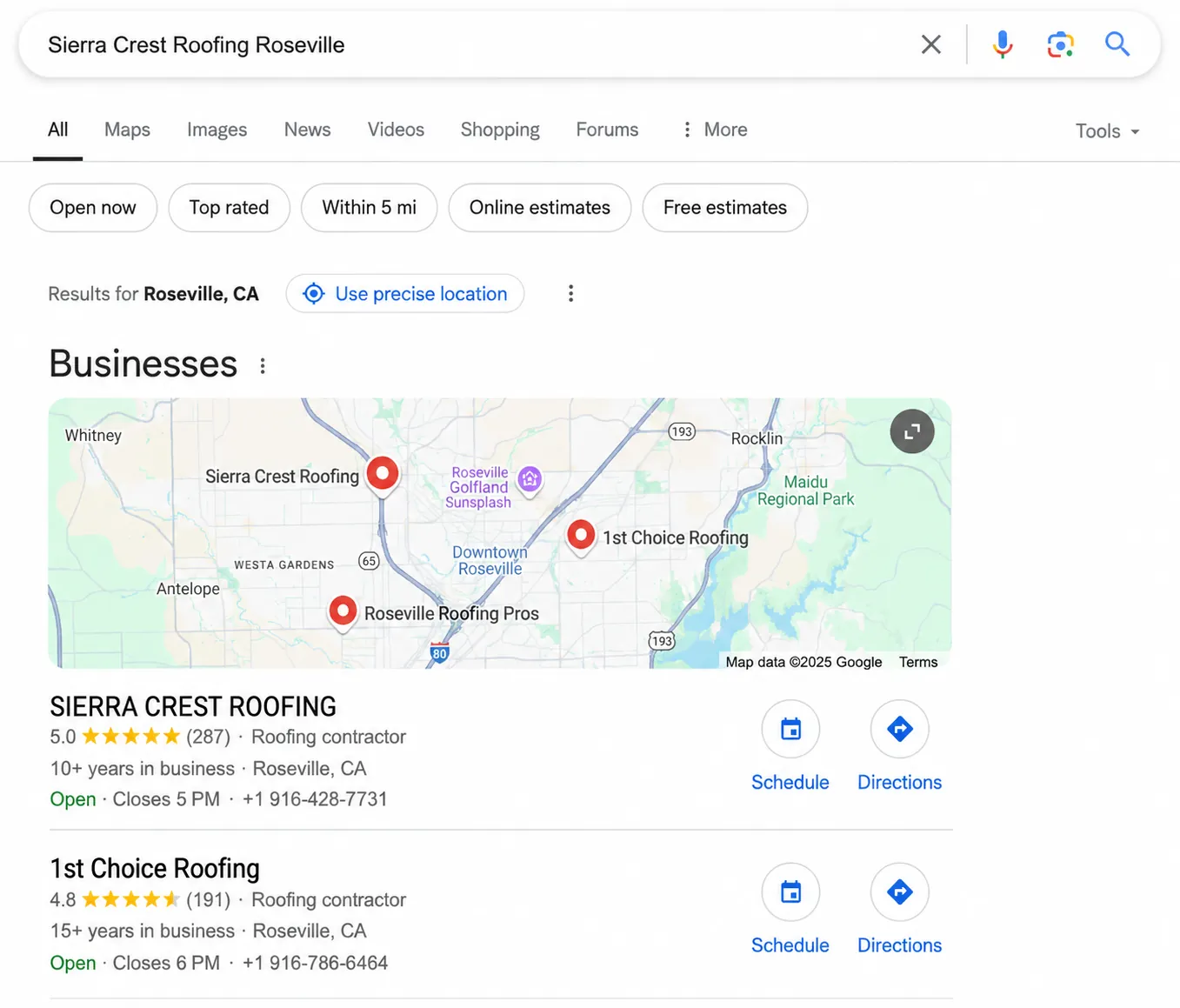
How to read the result
Compare desktop and mobile results to rule out browser or app glitches. If the profile appears for the brand name but not for service keywords, the issue is ranking and relevance, which we address in step 10.
3. Look for suspension, restriction, or pending review banners
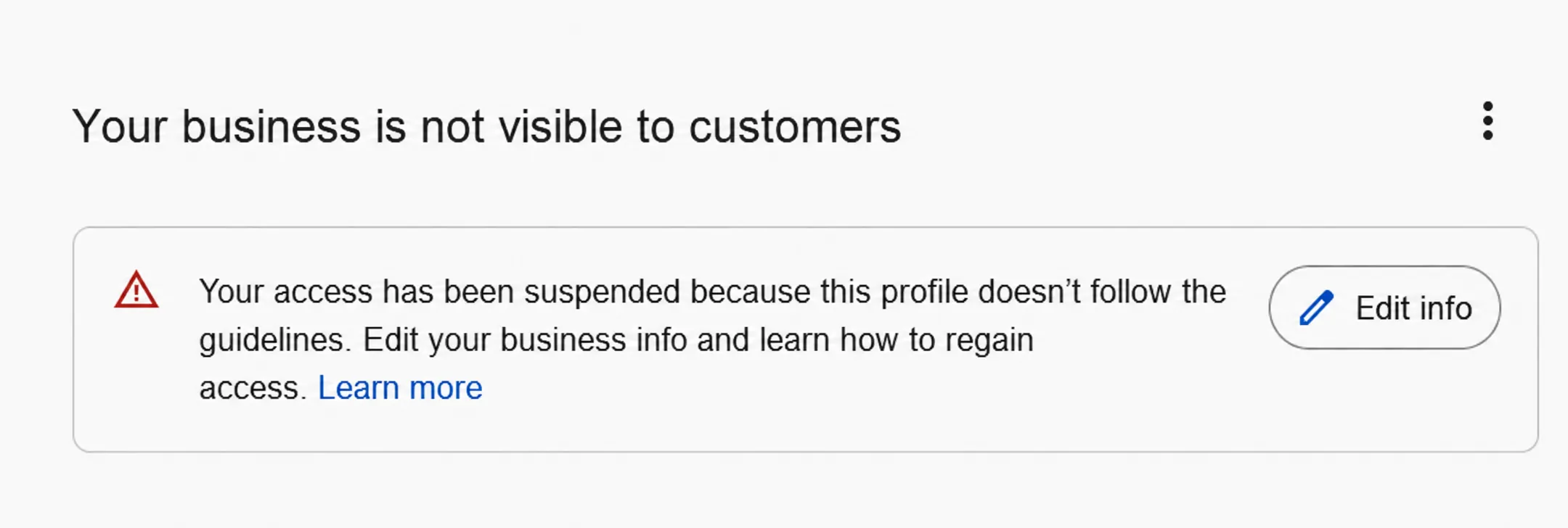
What to check
- Look for dashboard banners such as Suspended, Restricted, Pending review, Verification needed, or content rejected.
- Determine if the profile is missing entirely from Search/Maps or if only certain content or media is rejected.
- Check the email connected to the Google Business Profile for any official notices from Google.
- Identify whether the issue is a Business Profile suspension, account restriction, rejected edit, or rejected media/content.
How to fix it
- Avoid appealing immediately. First, fix the likely violation causing the issue.
- Review your profile against the Google Business Profile guidelines.
- Correct common problems like keyword-stuffed business names, misleading categories, use of virtual office addresses, duplicate profiles, or inaccurate business information before submitting an appeal.
- Prepare evidence to support your appeal, such as business license, official business registration, tax certificate, utility bill, lease or proof of real location, and photos of signage and real business operations.
- Ensure all evidence matches the business name and address exactly as listed on your profile, as required by Google.
When to escalate
- If your profile is suspended or disabled, submit an appeal through Google's Business Profile appeals tool.
- Do not create a new profile while an appeal is under review.
- Avoid submitting multiple appeals before receiving a decision.
- If Google prompts you to add evidence during the appeal process, the evidence form must be submitted within 60 minutes.
4. Confirm your storefront or service-area setup

What to check
- Do customers physically visit your business location?
- Is your business address publicly visible on your Google Business Profile?
- Is your business a storefront, service-area business (SAB), or a hybrid of both?
- Is the map pin location accurate on Google Maps?
- Are your service areas specific, realistic, and properly defined?
How to fix it
- If customers visit your location, keep your business address visible and ensure it is accurate.
- If customers do not visit your location, remove or hide the address and instead list your service areas.
- Edit service areas by going to Edit profile > Location > Service area in your Google Business Profile dashboard.
- Google allows up to 20 service areas. Make sure they are specific and reflect where you genuinely serve customers.
- Google recommends that the total service area should not exceed roughly two hours driving time from your business base.
- If the map pin is misplaced, adjust it in your Business Profile location settings.
When to escalate
- If you cannot correct the address or map pin location using the editor.
- If address changes trigger re-verification and the process gets stuck or delayed.
- If Google continues to display the wrong public address despite corrections.
For more details, see Google's official guidance on managing business addresses and managing service areas.
5. Fix NAP inconsistencies across the web
NAP stands for Name, Address, and Phone Number. Google uses business information from your website, directories, maps platforms, social profiles, and citations to better understand whether your business is consistent and trustworthy.
Our guide to what NAP means in local SEO explains which details need to agree, how to distinguish formatting differences from incorrect information, and what a name-change cleanup involved in one campaign.
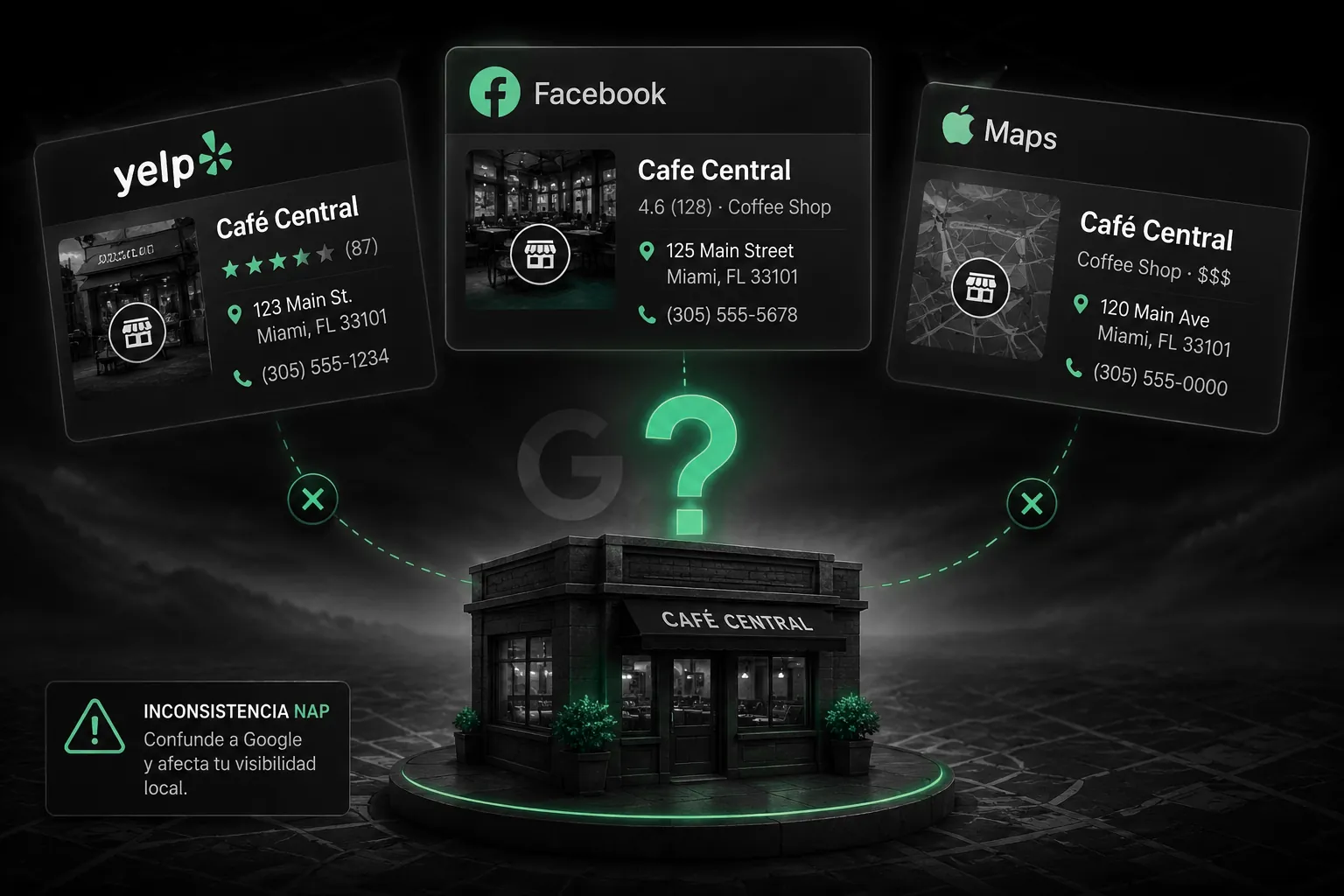
What to check
- Does your business name match across your Google Business Profile, website, Facebook, Yelp, Apple Maps, Bing Places, and local directories?
- Is your phone number the same everywhere?
- Is the address formatted consistently?
- Are old business names or old phone numbers still appearing online?
- Did a rebrand happen without updating older citations?
How to fix it
- Start with your website and Google Business Profile.
- Then update major platforms like Apple Maps, Bing Places, Yelp, Facebook, and industry directories.
- Remove or update old citations using previous names, addresses, or phone numbers.
- If your business rebranded, make sure the new name is reflected consistently across the web.
- Keep a spreadsheet of each citation, login, current NAP, and status.
When to escalate
- If old listings are controlled by previous owners or agencies.
- If important directories keep showing the wrong business information.
- If inconsistent NAP is connected to duplicate profiles, suspension risk, or verification problems.
For example, if a business used to appear online as "Beauty Salon Miami" and now appears as "Beauty Nails Studio," Google may struggle to connect older citations with the new business identity. To a human, it may look like a simple rebrand. To Google, it can create uncertainty unless the information is updated consistently.
6. Stop changing core GBP information too often
What to check
- Did your profile visibility drop after changing core information such as business name, primary category, address, phone number, website, or service area?
- Are there pending edits or re-verification requests in your dashboard?
- Has the owner or agency made multiple changes in a short time frame?
- Is the business changing categories frequently just to test rankings?
How to fix it
- Pause making additional major edits while current changes are pending review.
- Keep a simple change log recording the date of change, field changed, old value, new value, reason for change, and any observed impact on visibility.
- Only update core fields when factual corrections or real rebranding/moves require it.
- Avoid batching many major edits unless necessary for a legitimate rebrand or relocation.
- If rebranding, update your website, signage, citations, and Google Business Profile consistently and simultaneously.
- If the primary category was changed incorrectly, revert to the most accurate category and allow time for review.
When to escalate
- If a core edit remains rejected or stuck in review.
- If Google requests re-verification and you are unable to complete it.
- If your profile visibility disappears completely after a legitimate edit.
For more information, see Google's guidance on editing your business information.
7. Remove keyword stuffing from your business name
Google's guidelines say your Business Profile name should reflect your real-world business name as used on signage, branding, legal documents, and official materials.
What to check
- Does your Google Business Profile name match your real business name?
- Did someone add city names, services, or "near me" keywords to the name?
- Does your signage match the name on the profile?
- Does your DBA or legal documentation support the name?
- Are competitors or users likely to report the name as spam?
How to fix it
- Use the real business name only.
- Remove extra city names, service keywords, slogans, and promotional phrases.
- Put keywords in services, categories, descriptions, website pages, and content, not in the business name.
- If the name is legitimate, keep proof ready: signage photos, DBA, business registration, or branded materials.
| Status | Example business name |
|---|---|
| Good | Shelly’s Coffee |
| Risky | Shelly’s Coffee - Best Coffee in Miami |
| Risky | Shelly’s Coffee | Organic Coffee & Bakery Miami |
When to escalate
- If Google rejects the corrected name.
- If a competitor keeps suggesting incorrect edits.
- If the business name is legitimate but Google asks for proof.
- If the profile was suspended after keyword stuffing or a name change.
Keyword stuffing may create short-term movement, but it increases the risk of edits, reports, restrictions, or suspension. A clean name is safer long term.
8. Check for duplicate or old listings
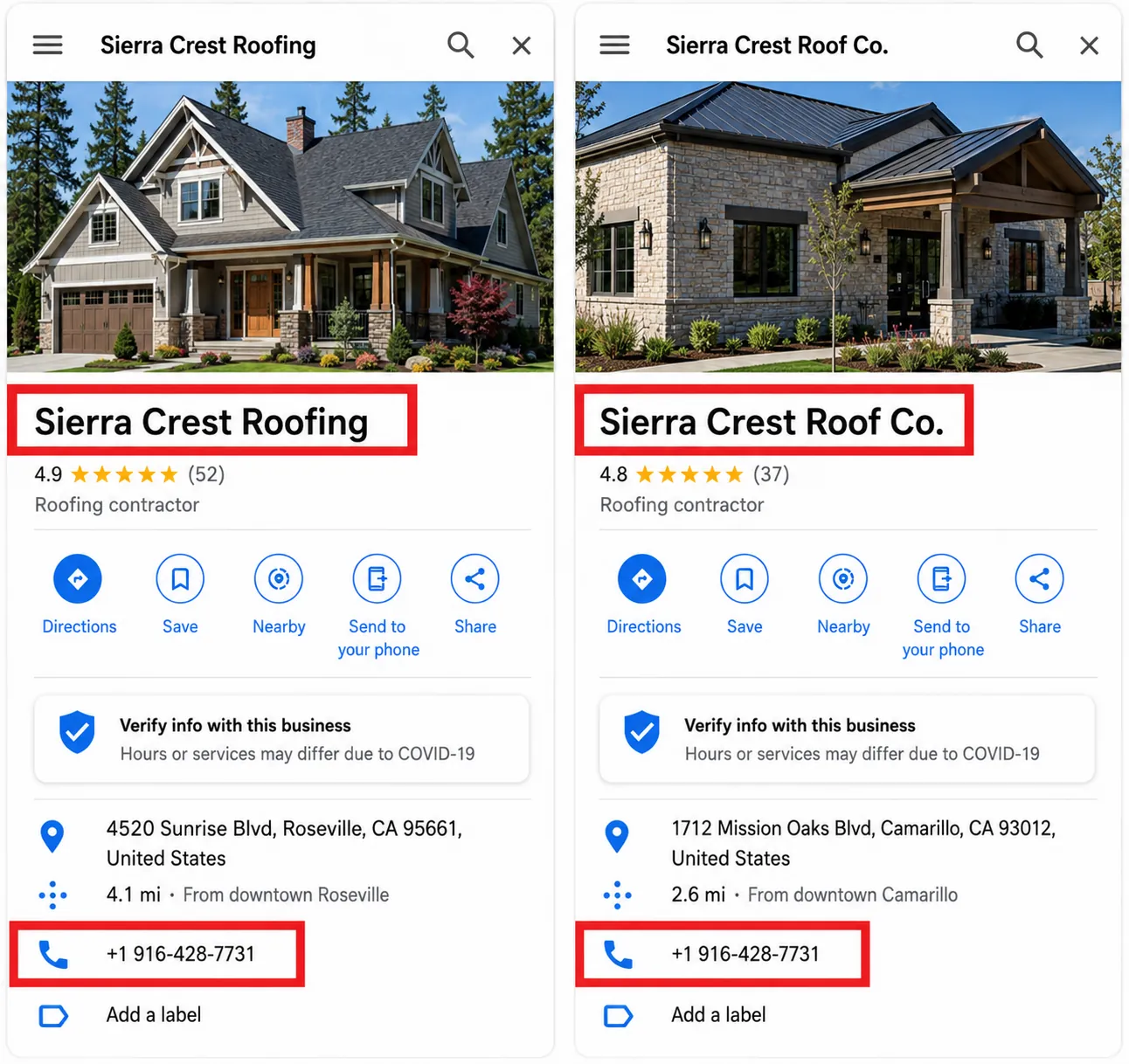
What to check
Search Google Maps and Google Search for your current business name, old business names or former brand names, phone numbers associated with your business, business address(es), owner or practitioner names linked to the business, and previous business locations.
Then check:
- Were any profiles created by old marketing agencies, previous owners, other Google users, or automated data sources?
- Are customer reviews split across multiple listings?
- Are duplicates verified by different Google accounts?
How to fix it
- Do not create new profiles to try to fix duplicate listing issues.
- Identify the strongest, most accurate profile to maintain.
- Remove duplicates you control from your Google Business Profile account.
- For duplicates appearing on Google Maps, request a merge or submit a suggestion to remove duplicates via the "Suggest an edit" > "Close or remove" option.
- If your business has moved, update the existing profile's address instead of creating a new profile.
- If your business offers multiple services, list all services within the main profile rather than creating separate profiles for each.
- Note that when Google merges profiles, reviews may be combined but responses to reviews may be lost.
When to escalate
- If a duplicate is verified by another Google account you do not control.
- If reviews are split between two or more profiles affecting your visibility.
- If the incorrect listing consistently outranks the correct one.
- If Google does not accept your edit or merge suggestions.
See Google's official advice on duplicate business profiles.
9. Review recent edits that may have triggered re-verification or review
What to check
- Look for pending review notices, rejected edits, or verification prompts in your Google Business Profile dashboard.
- Check your email inbox for any messages from Google related to profile edits or verification.
- Identify exactly what changed before your profile's visibility dropped, including business name, primary category, address, phone number, website URL, service area, and opening status (open, temporarily closed, permanently closed).
- Verify if the edits are visible publicly in Google Search and Maps or only within the dashboard.
How to fix it
- If the edit is minor and still under review, wait up to 3 business days for Google to process it.
- Avoid repeatedly editing the same field while it is under review.
- Do not make unrelated changes while Google is reviewing core business information.
- If an edit was inaccurate, correct it once and avoid frequent changes.
- If your business moved, update the existing profile rather than creating a new one.
- If Google requests re-verification, complete it before making further edits.
When to escalate
- If an important edit remains rejected after a reasonable time.
- If edits are stuck and incorrect business information is visible publicly.
- If rejected edits affect critical fields like name, category, address, phone, or website.
- For businesses outside the UK/EEA, rejected business information edits may require contacting Google support directly rather than using the appeals tool.
- For suspended or restricted profiles, use the appeals tool as described earlier.
See Google's official documentation on editing your business information and appealing restrictions.
10. Strengthen local ranking signals after the profile is visible
Verification and a technically correct setup only make the Google Business Profile eligible to appear. Ranking for "near me" and competitive local keywords requires ongoing local SEO work. This is where a structured Google Business Profile guide helps keep the profile work connected to the broader local SEO plan.
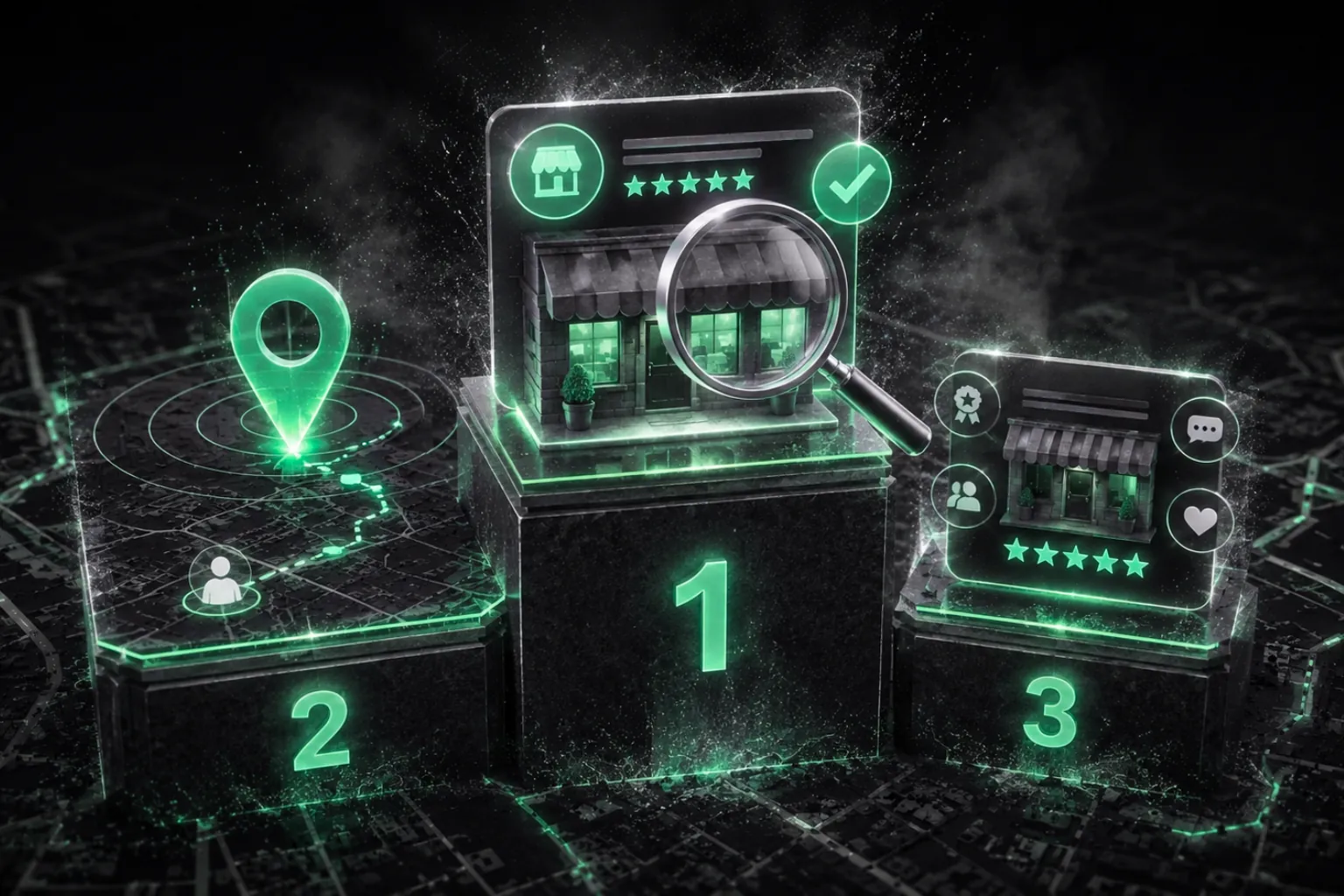
Google uses three main local ranking factors: relevance, distance, and prominence.
Relevance
Selecting the right Google Business Profile categories improves search relevance. Add detailed services and clear service descriptions on both the GBP and your website. A complete profile helps Google better understand the business and can support stronger local visibility.
Prominence
More reviews and positive ratings can help improve local ranking. Encourage real customer reviews, manage reviews by responding to them, add photos and post updates to keep the business profile active. A weak digital presence can limit business appearance in search results, while high engagement with customer reviews can improve visibility. Low prominence in searches is common for new businesses competing against established ones.
Distance
Distance is largely outside your control, but you can define a realistic service area and create city- or neighborhood-specific pages on your website.
Use Google Business Profile Performance, call tracking, Google Search Console, and analytics data to measure whether local search rankings, traffic, and leads from organic listings are improving.
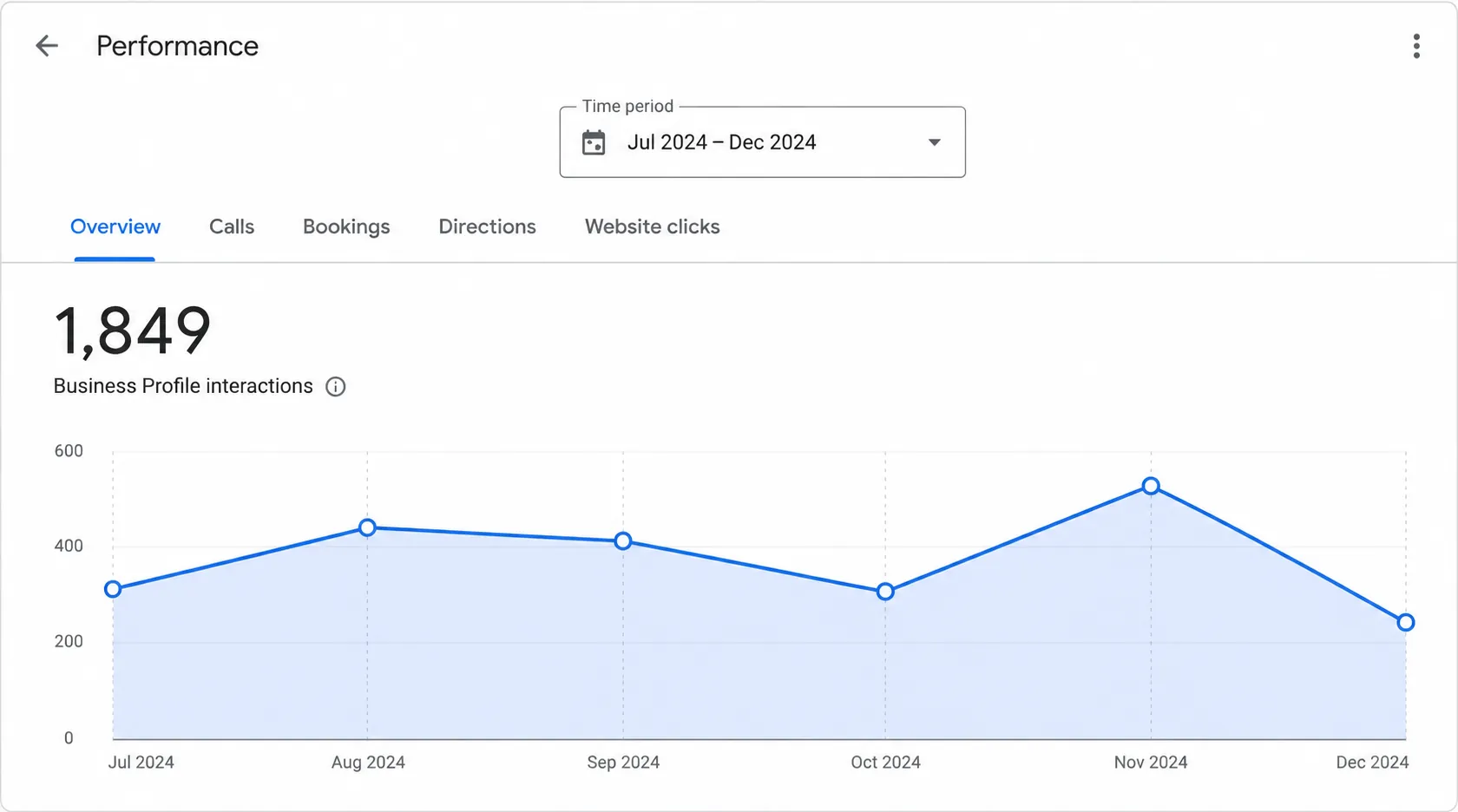
For more details, see Google's guide to improving local ranking.
11. Know when to wait and when to contact Google support
When to wait
Wait up to 3 business days after minor edits, and up to 5 business days after submitting video verification before assuming something is wrong. New profiles can take days to months to build meaningful visibility, depending on category and competition.
When to contact support
Contact support if:
- The profile is verified but invisible for exact brand searches.
- The dashboard shows suspension or restriction.
- Verification has been stuck beyond Google's stated review windows.
- Address pin or service-area issues cannot be resolved in the interface.
- An appeal or reinstatement is needed.
What to prepare
Gather business licenses, utility bills, or registration documents before submitting. Do not create a new Google Business Profile while an existing one is suspended, restricted, or under appeal. Document all interactions with support and keep copies of forms, screenshots, and evidence.
What not to do when your Google Business Profile is not showing up
When a profile is not showing up, shortcuts make things worse:
- Do not buy reviews or offer incentives that violate Google's review policies. This triggers penalties and long-term trust issues.
- Do not use virtual offices, mailbox stores, or random shared spaces as your business address unless you genuinely meet Google's requirements for signage and staffed presence.
- Do not keyword-stuff the Google Business Profile name.
- Do not create duplicate profiles to rank in multiple cities.
- Do not keep changing categories and core business info every few days.
- Do not trust agencies or freelancers promising instant GBP rankings or guaranteed top spots in Google Maps. Sustainable local SEO takes time and consistent execution.
In my experience, the fastest GBP penalties and visibility crashes come from shortcuts: fake reviews, virtual offices, keyword-stuffed names, duplicate profiles, and constant edits. Good local SEO takes time, consistency, and a strategy based on the competition in your market. The more business owners understand Google Business Profile as a real visibility asset, the better their results. Many think GBP is only a place to collect positive reviews, when in reality it is one of the strongest local visibility tools a business can have.
Frequently asked questions about Google Business Profile visibility
Why does my Google Business Profile link work, but I can't find my business on Google Maps?
If the direct GBP URL works but the profile does not appear in normal Google Maps or Google Search results, it usually means ranking filters, restrictions, or very weak local prominence are at play. Check your dashboard for suspension or restriction banners first. Then review your categories, distance from searchers, and competition in the area. Try zooming into the map near your business address and searching the brand name with and without filters like "Open now."
Can running Google Ads make my Google Business Profile show organically?
Google Ads, including Local Services Ads and search campaigns with location extensions, can increase overall visibility and drive more customers to your website or listing, but they do not directly cause an organic Google Business Profile to appear or rank higher. GBP visibility in organic Maps and Local Pack results is governed by relevance, distance, and prominence signals, independent of ad spend. Ads can complement local SEO by driving traffic and activity, but they will not fix verification, suspension, or policy issues.
How long does it take a new business to show on Google Maps after verification?
Most new, compliant profiles begin to appear in some searches within a few days of successful verification, but full visibility may take 1-2 weeks or longer depending on category and competition. Google states that video verification reviews can take up to 5 business days. After verification, the business may show only for exact business name searches at first, with broader service keywords taking more time and additional local SEO work.
Will marking my business temporarily closed make it disappear?
Marking a business "Temporarily closed" can reduce visibility for searches where users are looking for open businesses, but the profile remains in Google's index and may still appear for some branded searches. Only use this status for genuine temporary closures and switch back to "Open" as soon as you resume normal operations. Long-term misuse of this status can confuse customers and weaken relevance over time.
Can I have multiple Google Business Profiles at the same address?
Google generally allows only one profile per business per address, with exceptions for distinct businesses or practitioners in professions like medicine or law who meet Google's separate listing rules. Creating multiple GBPs at the same address for the same business, for example one for "plumber" and another for "drain cleaning," is against policy and can lead to filtering or suspension. Consolidate duplicated or unnecessary listings and keep a single, strong profile representing your main local brand.
Why is my GBP verified but not ranking for "near me" searches?
Verification only makes the profile eligible to appear. It does not guarantee top spots for "near me" keywords. Distance, competition, categories, reviews, website content, and overall prominence determine whether a verified profile appears for those search terms. Focus on accurate categories, detailed services, earning and responding to real reviews, building consistent citations, and creating strong local website content. This work takes time, especially when other businesses in your area are already established.
Can changing my business name hurt my Google Business Profile visibility?
Yes. Significant changes to your business name, especially during a rebrand, can temporarily impact GBP visibility while Google evaluates whether it is still the same business. Update the name consistently across your website, signage, and major directories at the same time, and avoid adding unnecessary keywords during the change. If the new name does not match real-world branding or legal documents, it may raise trust issues and risk suspension.
Next steps: get a free Google Business Profile Visibility Audit
If you have followed the 11 troubleshooting steps and still cannot understand why your Google Business Profile is not showing up, expert help can save time and guesswork, and professional Google Business Profile optimization turns these one-off fixes into an ongoing system.
Not sure why your Google Business Profile is not showing up? We will check your verification status, NAP consistency, profile setup, suspension risks, and the local SEO signals that may be keeping your business out of Google Search and Google Maps. With the right details and a clean, guideline-compliant profile, most local businesses in the United States can build strong visibility over time. For the bigger picture on staying visible across both Google and AI assistants like ChatGPT, read our guide to SEO in the AI era.
Get a free Google Business Profile Visibility Audit
We'll check your verification status, NAP consistency, suspension risks, and the local SEO signals keeping you out of Google Search and Maps, then tell you exactly what to fix first.